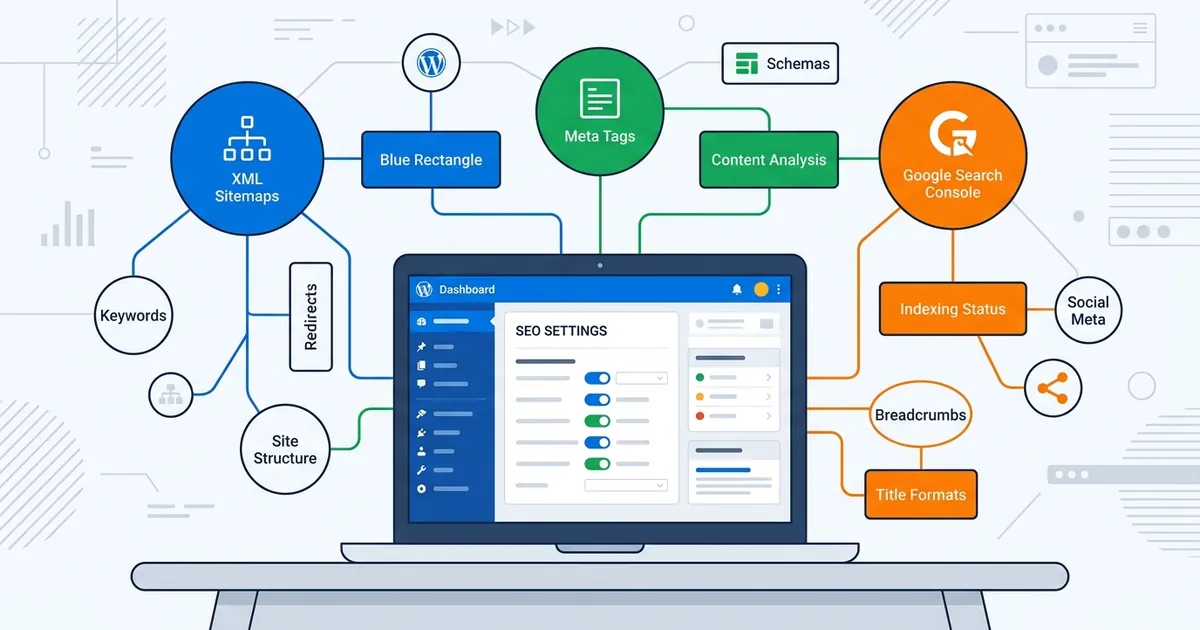
SEO plugin configuration is the process of connecting your plugin to search engines and establishing foundational rules for how your site’s pages appear in search results. A misconfigured plugin wastes its power—titles and descriptions won’t display correctly, search engines may miss whole sections of your site, and Google won’t understand what your content is about. Spending 15 to 30 minutes on setup now saves hours of manual per-post work later.

Yoast SEO first-time setup and configuration wizard
Yoast SEO walks you through its configuration wizard on first activation. Access it by going to your WordPress Dashboard, clicking SEO, then General, and selecting First-time configuration. The wizard covers three critical areas: SEO data optimization, site representation, and social media profiles.
Enable SEO data optimization so Yoast can index and analyze your content. Without it, Yoast cannot flag issues or provide guidance.
Enter your business name, logo, and contact information so Google recognizes your site identity. This data feeds into Google’s Knowledge Graph and appears in rich snippets—the special boxes that show up in search results.
Add your Facebook, Twitter, or LinkedIn profile URLs so Google connects them to your site. Google Search Console verification is the most critical—it’s your direct line to Google’s view of your site.
Rank Math setup wizard and configuration modes
Rank Math launches its Setup Wizard automatically when you activate the plugin. You don’t have to hunt for it. The wizard asks a single, important question: “What is your website about?” Your answer determines what structured data gets added automatically. Choose from hobby blog, online store, organization website, or agency.
Rank Math offers three modes: Easy (sensible defaults for beginners), Advanced (granular control), and Custom (for developers managing multi-site networks).
Rank Math applies LocalBusiness schema automatically in five minutes. Yoast requires per-post schema setup, adding time across dozens of articles.
Choosing the right configuration mode for your skill level
Beginners should use Easy mode for zero manual work. Advanced mode suits users who want to customize structured data or breadcrumbs. Custom mode is rarely needed unless managing a complex setup.
Structured data and schema markup initialization
Schema markup tells Google what type of content a page contains. Rank Math adds the correct schema (Article, Product, FAQ, LocalBusiness) without manual JSON-LD writing. This triggers rich snippets—ratings, prices, and FAQ boxes in search results.
If you want to go deeper into this topic, see our guide on implementing schema markup to help search engines understand your content.
XML sitemap setup and search engine submission
An XML sitemap lists every important page on your site so Google doesn’t miss anything. Yoast enables it by default at /sitemap_index.xml.
Rank Math lets you include or exclude specific post types, categories, or low-value pages from the sitemap, helping Google prioritize your best content.
Both plugins automatically update sitemaps when you add or delete posts. No manual refresh is required.
Enabling and customizing XML sitemaps in each plugin
For Yoast, navigate to SEO, then Settings, then Site features. Verify the XML sitemaps toggle is on (it’s on by default).
For Rank Math, go to Rank Math, then Sitemap Settings. Select which post types and taxonomies to include. Exclude any low-value pages like thank-you pages or redundant tag archives.
Submitting your sitemap to Google
Copy your sitemap URL (usually https://yoursite.com/sitemap_index.xml). Go to Google Search Console, then Coverage, then Sitemaps. Click “Add/test sitemap” and paste the URL. Google will crawl it within a few days to a week, depending on your site’s authority and crawl budget.
Submission accelerates indexing. Without it, Google may eventually find your pages, but submission is a safety net.
Meta tags, title templates, and description setup
Meta tags—title tags and meta descriptions—drive click-through rates from search results. Write unique descriptions to sell the click. Avoid keyword stuffing—Google ranks on relevance and expertise, not keyword density.
Yoast requires per-post setup; Rank Math uses site-wide templates. Keep titles 50 to 60 characters to prevent truncation. A good formula: Primary Keyword + Brand Name (e.g., “SEO Plugin Configuration: Yoast vs Rank Math 2026”).
Google Search Console integration and verification
Google Search Console is your direct line to Google. It shows which keywords drive traffic, which pages have errors, and where to improve. Both Yoast and Rank Math can connect to Google Search Console, but Rank Math auto-detects all properties in your Google account.
For Yoast: go to Dashboard, click SEO, select configuration wizard, click “Set up Google Search Console integration,” and Yoast guides you through authentication.
For Rank Math: go to Rank Math Dashboard, click Integrations, select Google Search Console, authorize your Google account, and Rank Math pulls in all your properties automatically.
After authorization, the plugin displays keyword impressions, clicks, and average position right in WordPress. This data is the source of truth for what’s working. Use it to refine your on-page SEO and internal linking strategy.
Yoast vs Rank Math: Configuration trade-offs at a glance
Yoast is transparent and methodical; Rank Math is faster and automated. Rank Math wins on speed (five minutes versus 15 with Yoast) and applies sensible defaults. Yoast wins on granular control. Rank Math initializes structured data automatically; Yoast requires per-post setup. Choose Rank Math for speed, Yoast for transparency.
Common configuration mistakes and how to avoid them
Skipping SEO data optimization in Yoast breaks content analysis. Don’t skip it.
Avoid keyword stuffing in titles and descriptions—write for humans first.
Create a sitemap and submit it to Google Search Console. Google won’t index the sitemap unless you tell it.
Use unique meta descriptions for each post, not identical ones. Set a monthly reminder to review Google Search Console for crawl errors.
Next steps after initial configuration
After setup, conduct keyword research to align your strategy with what your audience searches for. Then optimize site speed and performance, which affects rankings, and develop an overall WordPress SEO strategy with regular content updates and internal linking.
Configuration takes 15 to 30 minutes and requires no coding. Choose Rank Math for speed or Yoast for transparency. Either way, do it today.