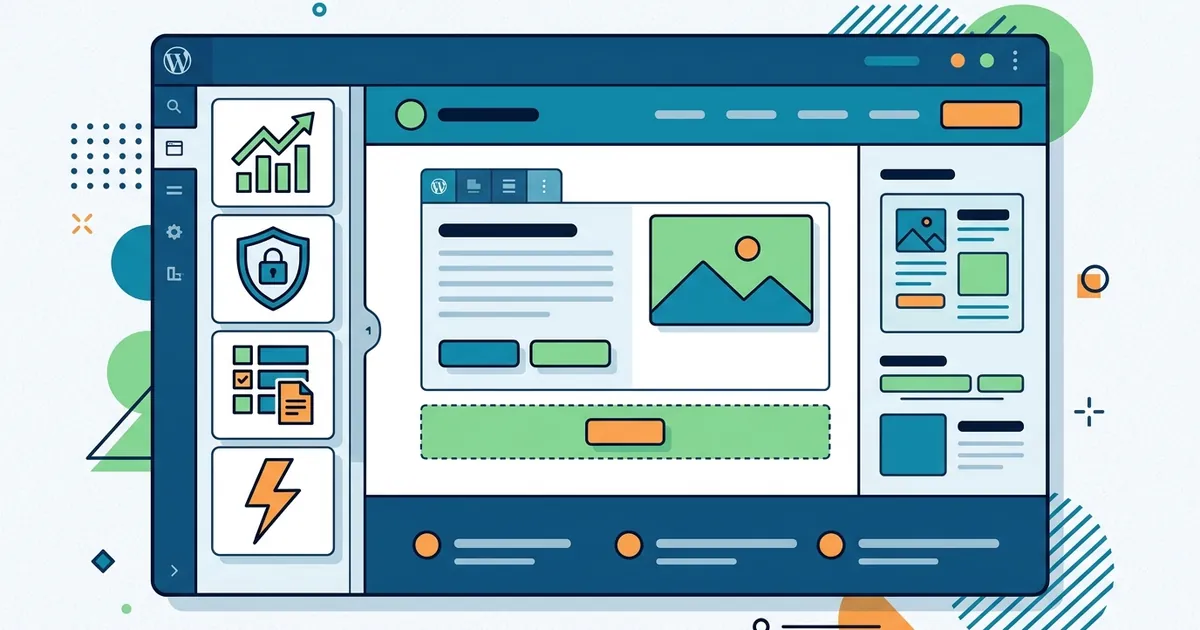
WordPress has over 60,000 free plugins available, and another 30,000+ scattered across third-party marketplaces. That abundance is also WordPress’s biggest liability for small business owners. A poorly chosen plugin doesn’t just slow your site—it tanks lead generation, invite security breaches, and wastes your time troubleshooting conflicts. The right recommended plugins for small business WordPress sites do one job well, load fast, and integrate with your existing setup without drama.
This guide cuts through the noise. You’ll learn which plugins actually move the needle on revenue, how to spot a plugin worth installing before you activate it, and why fewer, better plugins beat a sprawling toolkit every time.

Why plugin selection matters for small business revenue
Slow pages kill conversions. One additional second of page load time increases bounce rate by roughly 32%. If your contact form lives behind a three-second load, half your visitors leave before they see it.
Security is the second reason. 96% of WordPress security vulnerabilities live in plugins and themes, not WordPress core. A single unpatched plugin can hand a hacker the keys to your entire site—and your customer data along with it. Recovery costs money, reputation, and time you don’t have.
Finally, 80% of WordPress sites run at least one plugin, and most run several. The question isn’t whether to use them. It’s which ones to trust and how many you can run before performance collapses. A real estate agent who installs five different contact-form plugins without testing creates database bloat, form conflicts, and lost leads in the process.
How to evaluate WordPress plugins before installing
Not all five-star plugins are trustworthy. A 4.8-star rating with eight reviews doesn’t mean much. A 4.6-star rating with 2,000+ reviews means the plugin has survived real-world use at scale.
Check the last update date. If it hasn’t been touched in more than 12 months, the plugin is likely abandoned. An abandoned plugin won’t receive security patches when vulnerabilities surface, and it’ll break when WordPress releases a major update.
Active install count matters. Plugins with 100,000+ active installations get faster bug fixes and better support simply because more people are reporting issues. Read the recent one- and two-star reviews too. They reveal what breaks in actual setups, not marketing copy.
Before installing an SEO plugin, check if your theme already includes basic SEO features. Your hosting provider might already include security hardening. Installing duplicate functionality creates performance drag without benefit.
The quality-over-quantity principle
One well-coded plugin with 50,000 active installs beats three smaller plugins with 1,000 installs each. Poorly optimized plugins load CSS and JavaScript on every page, even when those assets aren’t needed. A single bad plugin can outweigh 10 good ones in terms of load time impact.
When you no longer need a plugin, delete it entirely. Deactivating alone leaves database entries, tables, and files behind. Those leftovers create clutter and expand your attack surface for no reason.
The core plugins every small business WordPress site needs
Start here. Most small business sites need plugins in five categories: SEO, security, forms, caching, and backups. A site running 15–25 well-chosen plugins performs as well as one running eight bloated ones. Focus on plugins that directly impact revenue: lead capture, conversion tracking, and search visibility.
SEO and content visibility
Your site only matters if people find it. Choose either Yoast SEO or Rank Math—both are mature, actively updated, and trusted by millions. Yoast excels at readability feedback with its traffic-light system. Rank Math offers AI-powered suggestions and unlimited keyword optimization in the free version.
Running two SEO plugins creates database conflicts and slows page load. Pick one and stop there. A plumber using SEO plugins that handle meta tags and schema markup through Rank Math gets their address, phone, and hours in search results automatically—no manual coding needed. That visibility drives calls.
Consider also whether you need local SEO plugins for small business visibility if you serve a geographic area. Local SEO plugins add your business to map results and local schema, which drives foot traffic and phone calls for service businesses.
Need to track which keywords bring organic traffic? Create keyword research for your WordPress site as an ongoing practice. Document what visitors search for, then build content around those queries. This is where most small businesses leak opportunity.
Security and backups
Ransomware doesn’t care how small your business is. Wordfence or Jetpack Security both scan for malware, monitor file changes, and block brute-force attacks. Wordfence offers more granular control; Jetpack is simpler to configure. Both are trusted by millions.
Pair a security plugin with a backup solution like UpdraftPlus or BackWPup. These run scheduled backups to cloud storage (Google Drive, Dropbox, AWS) on autopilot. A service business hit by ransomware restores from backup in 20 minutes instead of rebuilding the site from scratch—a difference worth thousands of dollars.
Forms and lead capture
WPForms and Gravity Forms both capture leads, auto-save submissions, and integrate with email and CRM platforms. WPForms is simpler and cheaper; Gravity Forms supports advanced workflows for complex operations. Install one, not both. A consulting firm using WPForms with Mailchimp integration auto-adds inquiries to a mailing list, eliminating manual data entry and missed follow-ups.
Performance and speed optimization
Install a site speed optimization plugins to cache static versions of your pages. Caching reduces database queries and server load—it’s the single biggest speed win you’ll see. WP Super Cache and W3 Total Cache both work well and are free.
Add image optimization with Imagify or Smush. These auto-compress and convert images to modern formats like WebP. Images often make up around 22% of page size, so this step cuts load time noticeably.
A blog that adds caching and image optimization often sees load time drop from three seconds to under 1.5 seconds. Faster load times improve SEO rankings and reduce bounce rate—both directly impact lead volume.
Plugin bloat: the hidden cost small businesses overlook
Plugin bloat isn’t about the number of plugins. It’s about poorly written plugins or unnecessary ones that load code on every page. Each plugin adds HTTP requests, database queries, and JavaScript. If 10 plugins each add 5 requests, that’s 50 extra server round-trips per page view.
Deactivating a plugin doesn’t remove it from the database. Files, tables, and entries remain. You must delete the plugin entirely to clean house.
A slow site loses leads and ranks lower in Google search results. Test plugin impact using Query Monitor or GTmetrix. Disable each plugin one at a time and measure page load time to identify the culprit. An e-commerce store removed eight unused or overlapping plugins and saw page load drop 40%, reducing cart abandonment by 12%.
Free versus premium plugins for small business
Free and premium plugins both work well when properly maintained. What matters is active development, high user ratings with thousands of reviews, and responsive support.
Mature free plugins like Yoast SEO, Wordfence, and WPForms are widely used and actively maintained. They’re not inferior to premium versions. Premium plugins (Gravity Forms, MonsterInsights, Rank Math Pro) offer priority support and advanced features. Pay for premium only if you’ll actually use the extras.
A well-coded free plugin always outperforms a poorly coded premium one. Evaluate based on your actual business need, not price tag.
How content strategy multiplies your plugin investment
Lead capture and conversion plugins only work if you have traffic to convert. Publishing fresh, SEO-optimized content regularly drives organic visitors to your forms and CTAs.
This is why many small businesses publish nothing: building content is slow, expensive, or requires in-house writers. An alternative is Makasete’s automated weekly SEO article service for WordPress sites (from $40/month), which plans, writes, fact-checks, illustrates, and publishes one article per week directly to your WordPress site. One documented client grew organic traffic 340% over nine months using daily articles. Paired with a proper form and conversion plugin, that traffic converts to leads at scale.
You can also take advantage of a free no-registration trial: site analysis and one sample article generated from a pasted URL to see the quality before committing. This removes the burden of choosing a content agency (typically $1,900+/month) or hiring in-house.
Common plugin mistakes and how to avoid them
- Installing multiple plugins for the same job. Two SEO plugins, two form builders, two caching plugins. Choose one per function and master it.
- Ignoring update frequency. A plugin not updated in 12 months is a security liability. Delete or upgrade it.
- Skipping staging tests. Install plugins on a staging site first, test for conflicts, then deploy to production.
- Leaving inactive plugins behind. Deactivated plugins still occupy database space and create attack surface. Delete what you don’t use.
- Dismissing negative reviews. One-star reviews often reveal real-world breaking points that marketing pages hide.
- Installing duplicate functionality. Your theme may already include SEO or security features. Check before adding plugins you don’t need.
The starting checklist
Begin with one security plugin (Wordfence or Jetpack Security), one SEO plugin (Yoast or Rank Math), one form plugin (WPForms or Gravity Forms), one backup plugin (UpdraftPlus or BackWPup), and one caching plugin (WP Super Cache or W3 Total Cache). That’s five. Add image optimization and you’re at six—plenty to run a professional site without performance issues.
Test each one before moving to the next. Read reviews before installing. Update on schedule. Delete what you don’t use. That discipline alone puts you ahead of 80% of WordPress site owners.
For more foundational concepts, see WordPress plugin basics for beginners to understand how plugins work under the hood and why some developers code better than others.